Logitech Ergo M575S Review: Space-Saving Trackball
Read our Logitech Ergo M575S review to see why this silent trackball is among the best home office peripherals for small desks and wrist comfort.
Buying guide: best peripherals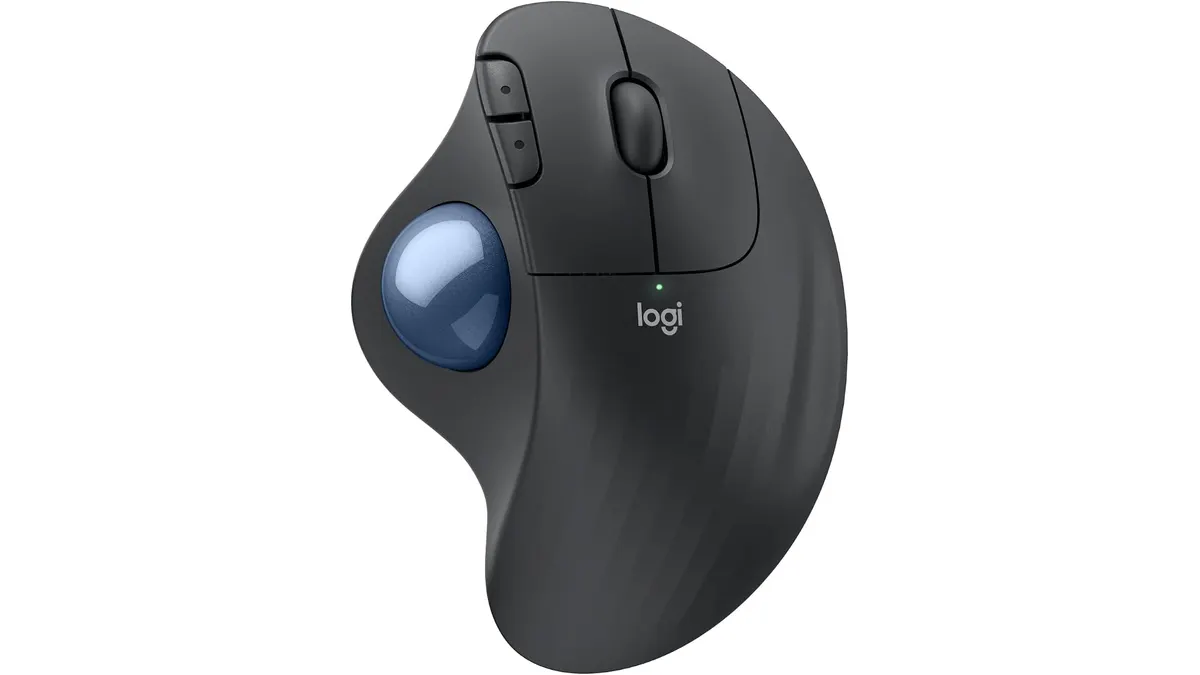 Peripherals
Desk space comes at a premium when you build a compact work environment. The Logitech Ergo M575S targets remote workers and creators who want to eliminate arm fatigue without sweeping a traditional mouse across a wide pad. As a standout entry among modern desktop Peripherals, this stationary device relies entirely on a smooth thumb trackball and quiet switches, earning its place among the best home office peripherals for crowded desks.
What it does well: Best home office peripherals for tight spaces
A static footprint is the primary advantage here. Because the body of the Logitech Ergo M575S stays completely still while your thumb navigates the cursor, you can place it on messy desks, glass tops, or even your lap. You do not need a mousepad or a polished wooden surface to get smooth tracking.
Logitech built this model with a certified ergonomic posture that reduces muscle strain in the forearm by 25 percent compared to a standard pointing device. Your wrist rests in a natural palm-supported position, taking pressure off your carpal tunnel during back-to-back spreadsheet sessions. Additionally, the silent click switches keep your workspace quiet during late-night projects or remote video meetings.
Connectivity options are flexible and reliable. You can pair it immediately via Bluetooth or plug in the included Logi Bolt USB receiver for a fast wireless link. Through the Logi Options+ software, you can configure its 3 customizable buttons to trigger Smart Actions or routine shortcuts, streamlining your daily workflow.
Power management is another strong suit. A single included AA battery runs the unit for up to 18 months, removing the need for charging cables cluttering your desk. Environmentally conscious buyers will also appreciate that the Graphite version uses 52 percent post-consumer recycled plastic.
Key specifications
| Specification | Detail |
|---|---|
| Device Type | Thumb-operated stationary trackball with silent clicks |
| Wireless Connectivity | Bluetooth and Logi Bolt USB Receiver |
| Ergonomic Certification | Design reduces forearm muscle strain by 25% |
| Customizable Controls | 3 buttons via Logi Options+ (supports Smart Actions) |
| Battery & Autonomy | Up to 18 months (1x AA battery included) |
| Materials & Sustainability | 52% post-consumer recycled plastic (Graphite model) |
| Software Compatibility | Logi Options+ |
Where it falls short
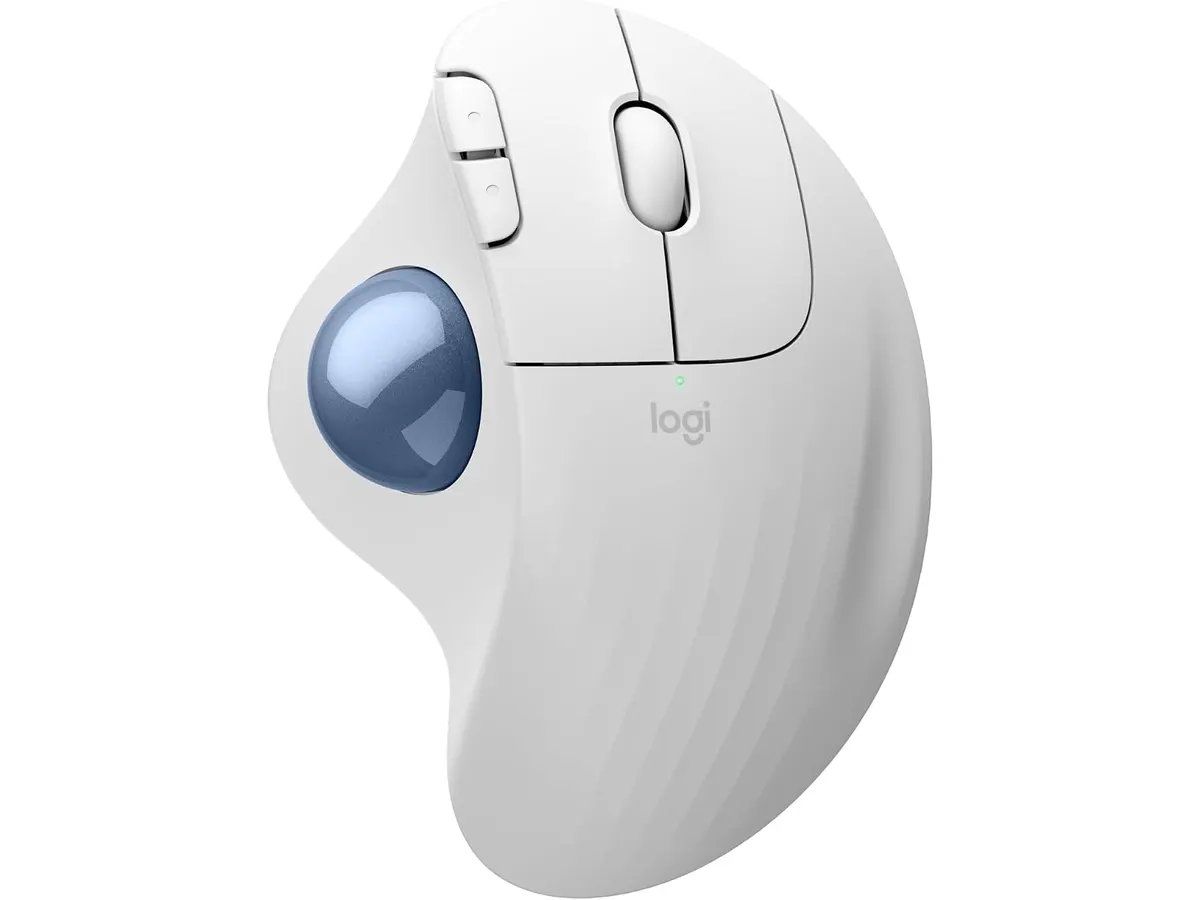
Thumb navigation requires a distinct adjustment period. If you have spent years dragging a standard optical mouse across a desk, fine-tuning precise cursor movements with your thumb feels awkward for the first few days. Graphic designers and photo editors who rely on rapid pixel-level precision might find thumb control frustrating initially.
Button count remains modest. You get only 3 customizable buttons, which might disappoint power users who want extensive multi-button layouts for complex audio or video editing timelines.
The lack of an internal rechargeable lithium-ion battery means you must keep a spare battery nearby when the 18-month mark approaches. While a single AA battery lasts a very long time, some users prefer direct USB-C charging over disposable power cells.
Who is it for?
This trackball is built for remote workers, writers, and analysts who suffer from wrist fatigue or work on small, clutter-heavy desks. It is ideal if you operate from non-traditional surfaces like couch cushions or tiny coffee shop tables where sliding a mouse is impossible.
It is not suited for fast-paced gamers or creative professionals who need high-speed twitch movements across multiple screens. Anyone who refuses to learn thumb-based tracking or demands a high button count should look at traditional options instead.
Alternatives to consider
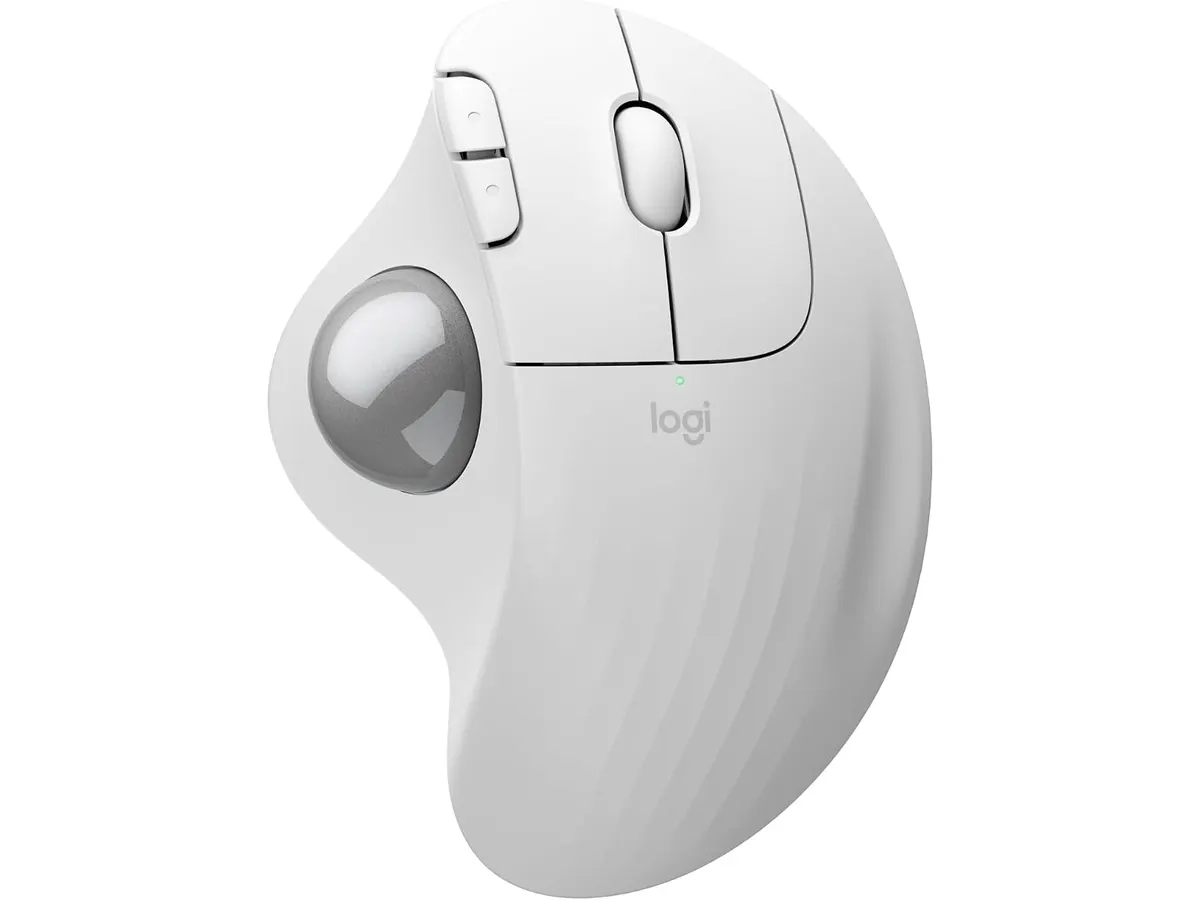
If you want top-tier ergonomic wrist support but prefer moving your entire hand, consider a flagship high-end ergonomic wireless mouse for professionals. That class of peripheral offers heavy-duty scroll wheels, expanded thumb controls, and rechargeable power for demanding desktop workflows.
If your budget is tight and you want a simple, portable pointing device without a learning curve, look at a standard versatile mobile wireless mouse. Compact travel mice offer familiar optical tracking and plug-and-play simplicity in a lightweight package.
Verdict
The Logitech Ergo M575S provides genuine physical relief and exceptional space savings for crowded home workstations. Its silent clicks, reliable Logi Bolt connectivity, and marathon 18-month battery life easily offset the initial thumb-tracking learning curve. If wrist comfort and desk real estate top your priority list, this ergonomic trackball is an outstanding investment for your daily setup.
Frequently asked questions
How does a thumb trackball reduce forearm strain?
By remaining completely stationary, the trackball eliminates the repetitive side-to-side sweeping motion of your entire arm. Resting your hand on the sculpted shell angled to reduce muscle strain by 25 percent keeps your forearm muscles relaxed throughout the workday.
Can I use the Logitech Ergo M575S without a USB port?
Yes, you can connect directly via Bluetooth to laptops, tablets, or desktop computers that support Bluetooth peripheral pairing. Alternatively, you can use the included Logi Bolt USB receiver for a dedicated wireless connection.
How do I customize the buttons on the Logitech Ergo M575S?
You install the free Logi Options+ software on your computer. From there, you can reassign the 3 customizable buttons to specific keyboard shortcuts, navigation commands, or automated Smart Actions.

Editor
Charly River · SetUpLatam
Charly River curates, reviews and edits SetUpLatam’s home office guides. He checks every product sheet against the manufacturer’s official specifications and cuts what does not help, so you buy right the first time.
You may also like
 Peripherals
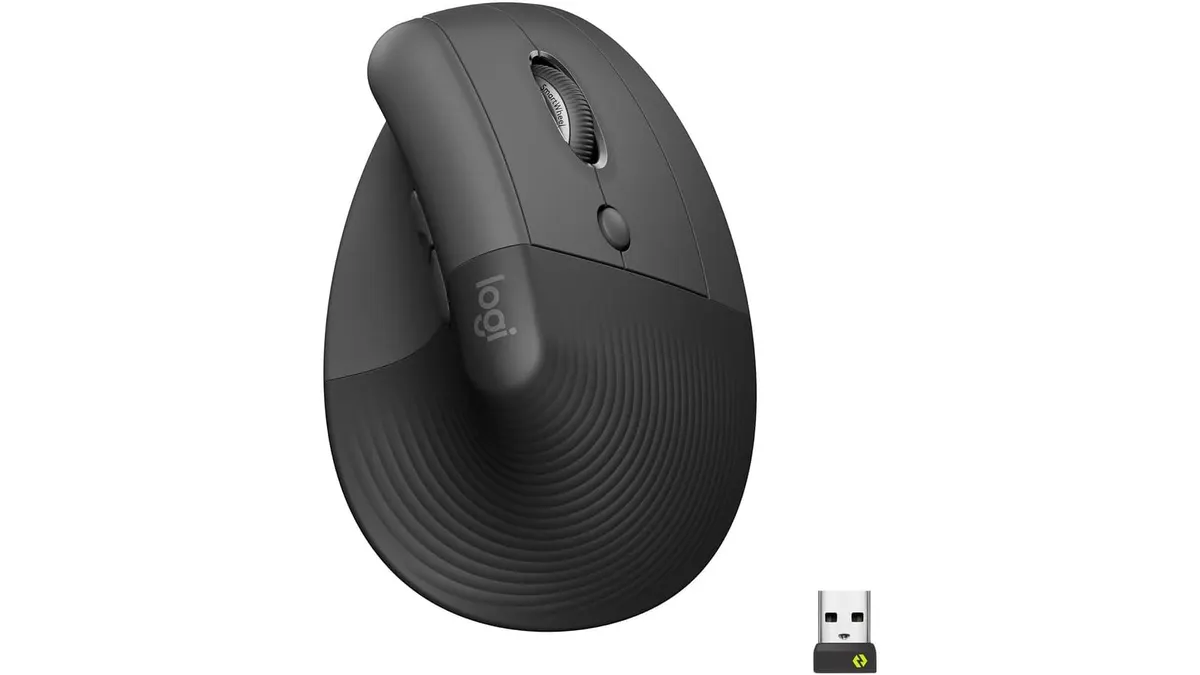
Logitech Lift Vertical Ergonomic Mouse Review
Our Logitech Lift Vertical Ergonomic Mouse review explores if this is one of the best home office peripherals for users with small to medium-sized hands.
 Peripherals
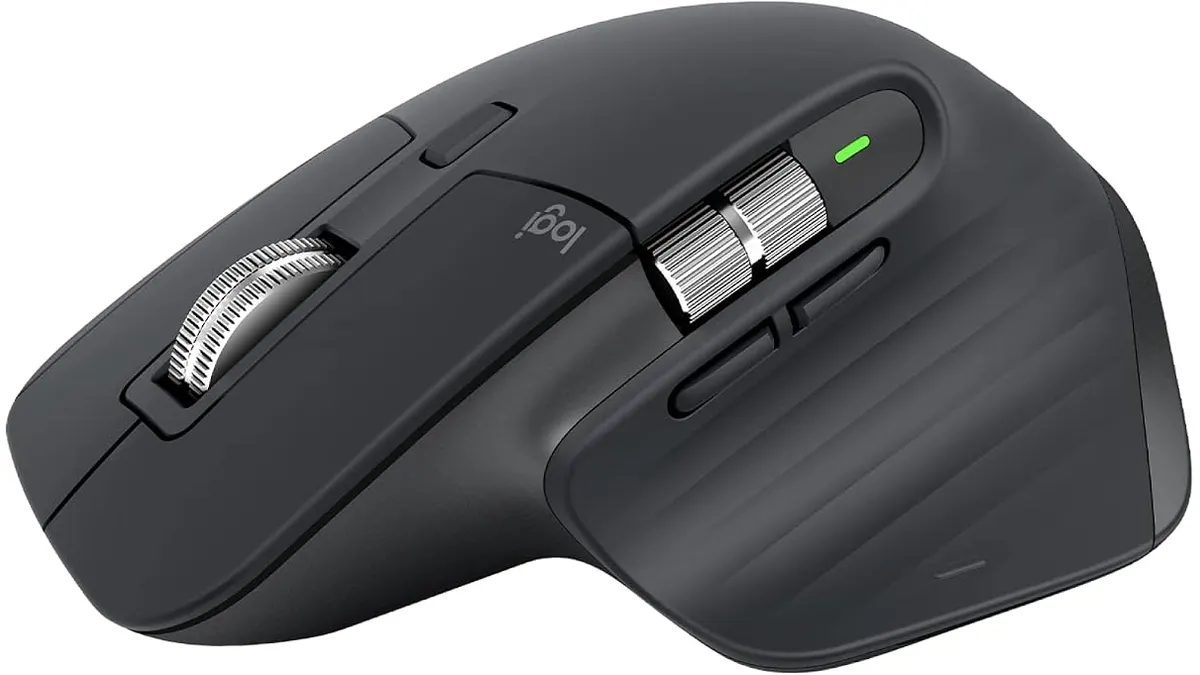
Logitech MX Master 3S Review: Ergonomic Wireless Mouse for Professionals
Discover the Logitech MX Master 3S, an ergonomic wireless mouse designed for comfort and precision. Ideal for remote workers and creatives.
 Peripherals
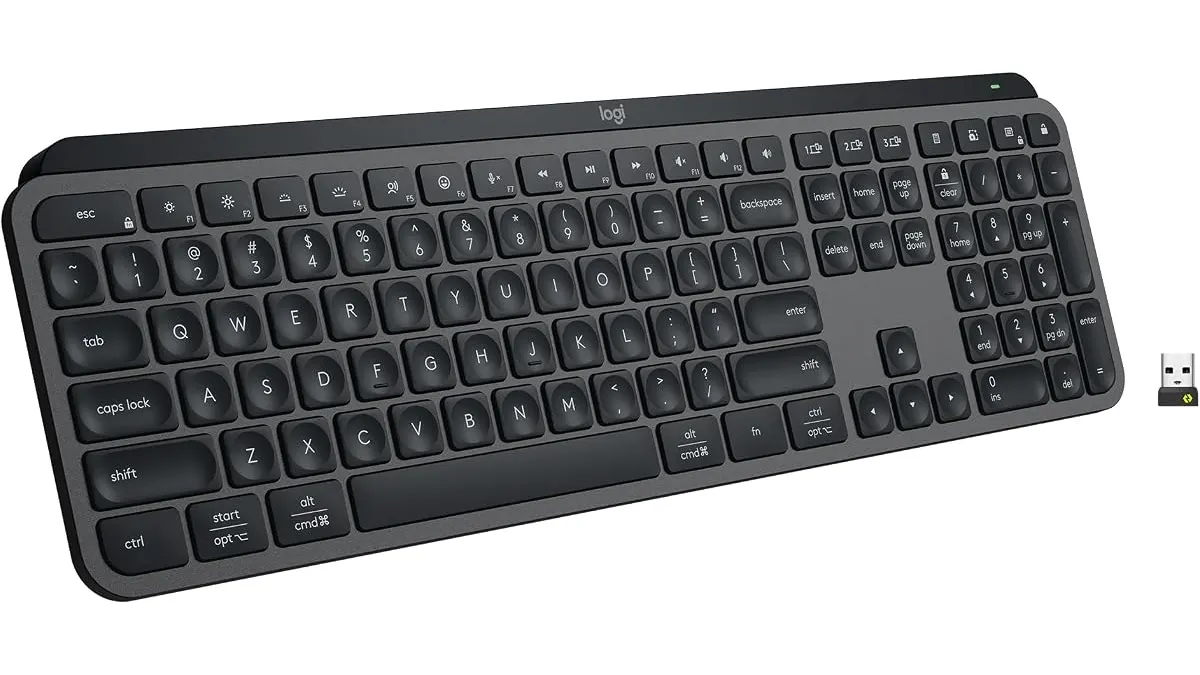
Logitech MX Keys S Review: Quiet Productivity
Looking for the best home office peripherals? Our Logitech MX Keys S review covers typing comfort, battery life, and multi-device setup for remote work.