Microsoft Surface Thunderbolt 4 Dock Review
Our Microsoft Surface Thunderbolt 4 Dock review breaks down performance, dual 4K support, and why it is the best usb-c hub for home office workstations.
Buying guide: best mounts & hubs Mounts & Hubs
The Microsoft Surface Thunderbolt 4 Dock aims to eliminate desk cable chaos while offering maximum bandwidth for multi-screen setups. Built for demanding desktop environments, it merges heavy power delivery with high-speed connectivity. If you need the best usb-c hub for home office productivity, this sleek laptop docking station delivers a clean, reliable anchor for your entire peripheral ecosystem.
What it does well
High-speed desktop connectivity defines this unit. With Thunderbolt 4 technology under the hood, data transfer speeds remain exceptionally fast even when routing heavy bandwidth tasks. You can drive up to two 4K monitors simultaneously without experiencing display lag or refresh rate drop-offs, making it a powerful choice for multitasking professionals.
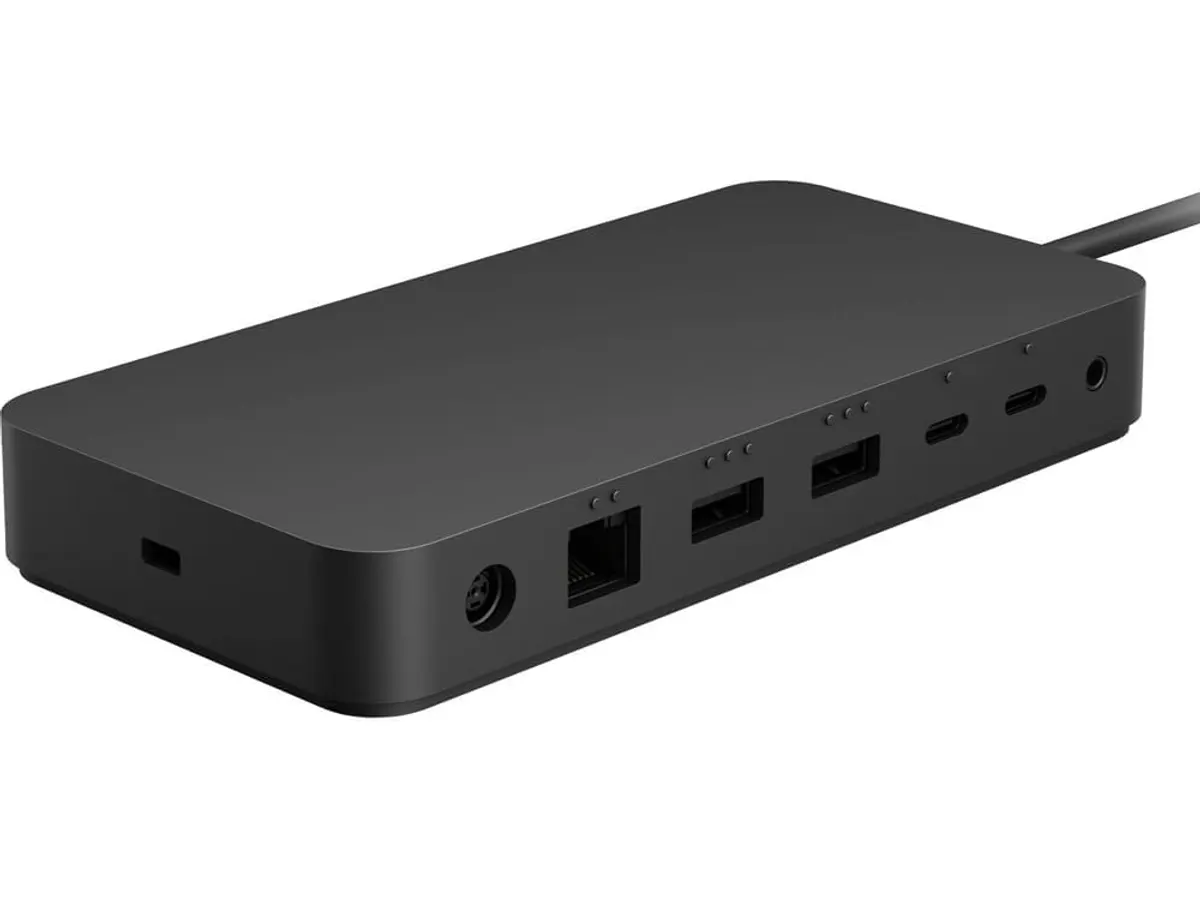
Port versatility is another clear highlight. Microsoft equips this station with a balanced mix of six USB connections: three USB-C ports and three USB-A ports. This setup lets you run high-speed external SSDs alongside legacy keyboard dongles or wireless mouse receivers without juggling extra adapters.
Network reliability gets a major bump thanks to the integrated 2.5G Ethernet port. Standard Gigabit connections can choke during large local file transfers or heavy media streaming, but 2.5G bandwidth provides a noticeable head start. Power delivery is equally impressive. The included 165W power supply ensures your connected laptop receives ample power while supplying steady wattage to all attached devices.
Accessibility features set this hardware apart from generic aluminum bricks. Built with 20% ocean-bound recycled plastic, the casing features raised tactile indicators near the ports. These subtle physical markers let you orient cables and align connectors entirely by touch without craning your neck behind your desk. For setup ideas featuring Microsoft Mounts & Hubs, combining this dock with a sturdy workspace arrangement creates a streamlined workflow. If you want to compare lighter travel-focused hubs, take a look at our Anker USB-C Hub 8-in-1 Review.
Key specifications
| Feature | Specification |
|---|---|
| Connection Standard | Thunderbolt 4 |
| USB-C Ports | 3 ports |
| USB-A Ports | 3 ports |
| Wired Networking | 2.5G Ethernet |
| Display Support | Up to dual 4K monitors |
| Included Power Supply | 165W |
| Material Construction | 20% ocean-bound recycled plastic |
| Accessibility Features | Tactile port alignment indicators |
Where it falls short
The most obvious physical trade-off is the power supply brick. Delivering 165W of system juice requires a massive external power block that demands significant under-desk or floor real estate. Stash it inside a cable management tray if you prefer a floating desk look.
Display connectivity might confuse users accustomed to standard monitor cables. The dock relies strictly on USB-C and Thunderbolt protocols for video passthrough. If your monitors only accept direct HDMI or DisplayPort connections, you must buy dedicated adapter cables separately. Anyone specifically hunting for a standalone usb-c hub with hdmi built into the housing will need to look at traditional multi-port dongles instead.
Full performance hinges on your host laptop. Plugging this dock into a non-Thunderbolt USB-C port limits display output and data rates. For an in-depth review of dedicated desktop stations with alternative port configurations, read our CalDigit TS4 Review.
Who is it for?
Choosing the Best USB-C Hub for Home Office Needs
This docking station shines for remote workers, developers, and creators who work from a permanent desk setup. If your daily routine involves driving dual 4K monitors, transferring large files over 2.5G Ethernet, and charging a high-draw laptop through a single cable, this station easily justifies its presence.
On the flip side, this unit is not meant for digital nomads or minimalist travelers. The heavy 165W power supply makes it impractical for travel bags. Users with a single modest monitor or older laptops without Thunderbolt support will pay for overhead they simply cannot utilize. If your primary goal is elevating a single screen to eye level, investing in a robust monitor arm and a lightweight pass-through dongle is a far smarter spend.
Alternatives to consider
Portable pass-through hubs offer an alternative for users on the move. These lightweight dongles draw power directly from your laptop charger and fit easily into a sleeve pocket, though they usually top out at single 4K screen output and offer standard Gigabit Ethernet speeds.
Full-size desktop expansion hubs serve users who want integrated legacy video ports. Certain desktop stations feature native HDMI ports, built-in SD card readers, and dedicated optical audio connectors on the main chassis, catering to audio engineers and video editors who prefer zero external display adapters.
Verdict
The Microsoft Surface Thunderbolt 4 Dock is a enterprise-grade command center built for high-demand workstations. Its combination of dual 4K monitor support, 2.5G Ethernet speed, and 165W power delivery removes bottleneck worries for heavy multitaskers. Minor trade-offs like the bulky power brick are easy to forgive once you experience a single-cable desk setup. Browse our curated guide to Mounts & Hubs to find ideal desk organizers and mounting arms to pair with this docking station.
Frequently asked questions
Can the Microsoft Surface Thunderbolt 4 Dock run two 4K monitors at once?
Yes, the dock fully supports dual 4K monitor configurations when connected to a host computer that features Thunderbolt 4 compatibility.
Does this dock require special software drivers to operate?
No, it operates as a plug-and-play Thunderbolt 4 device on modern operating systems, though firmware updates may occasionally download automatically through system updates.
What do the tactile indicators on the dock do?
They are raised physical ridges placed next to the ports that allow you to identify port locations and cable alignment by touch without having to look behind the dock.

Editor
Charly River · SetUpLatam
Charly River curates, reviews and edits SetUpLatam’s home office guides. He checks every product sheet against the manufacturer’s official specifications and cuts what does not help, so you buy right the first time.
You may also like
 Mounts & Hubs
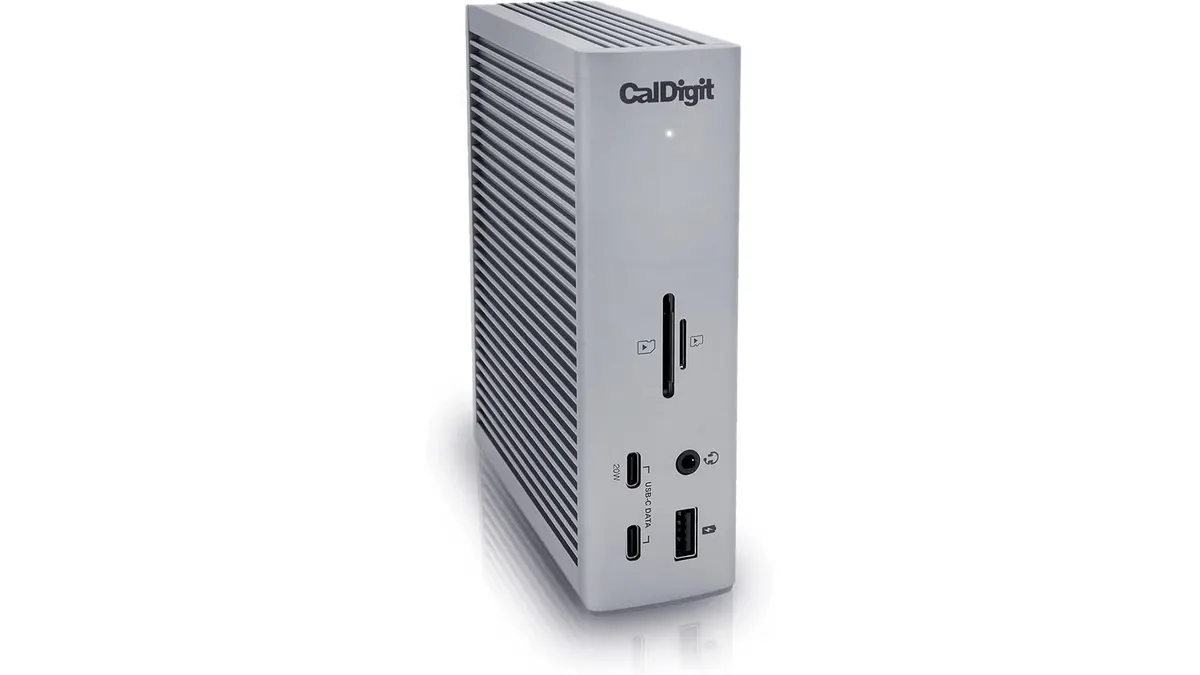
CalDigit TS4 Review: The Ultimate Desktop Hub
Our CalDigit TS4 review examines if this 18-port powerhouse is truly the best usb-c hub for home office setups requiring maximum connectivity and performance.
 Mounts & Hubs
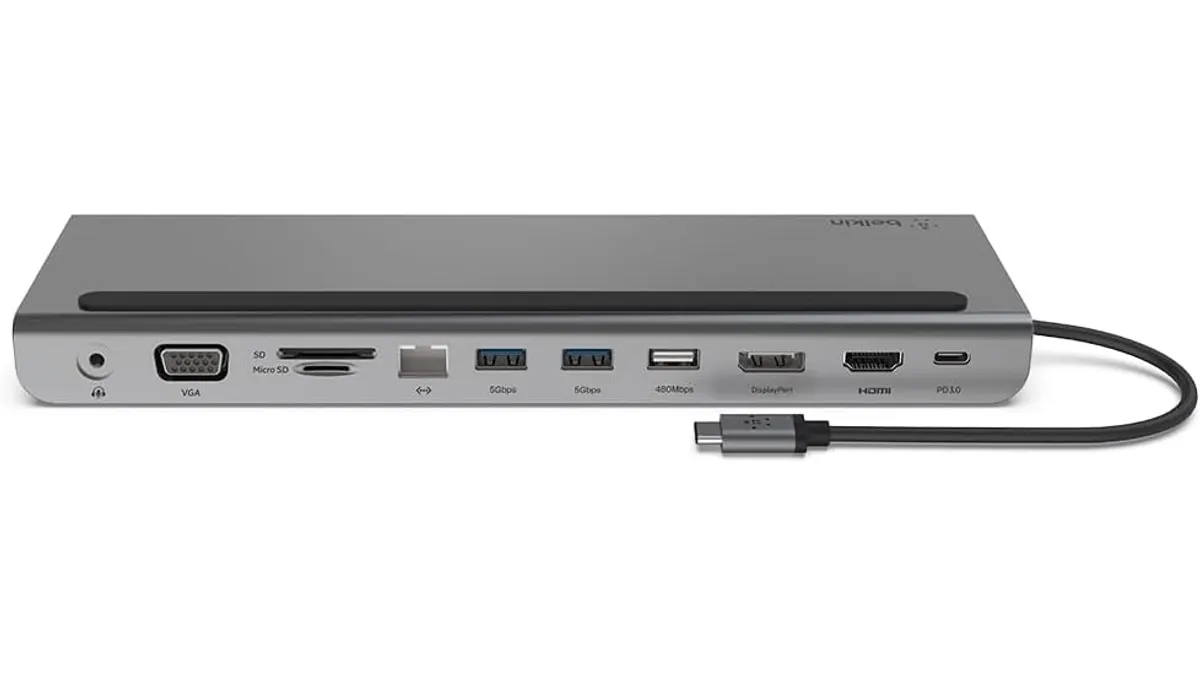
Belkin 11-in-1 USB-C Hub Review: Desktop Utility
Is the Belkin 11-in-1 USB-C Hub the best usb-c hub for home office setups? We test its pass-through charging, port variety, and design to help you decide.
 Mounts & Hubs
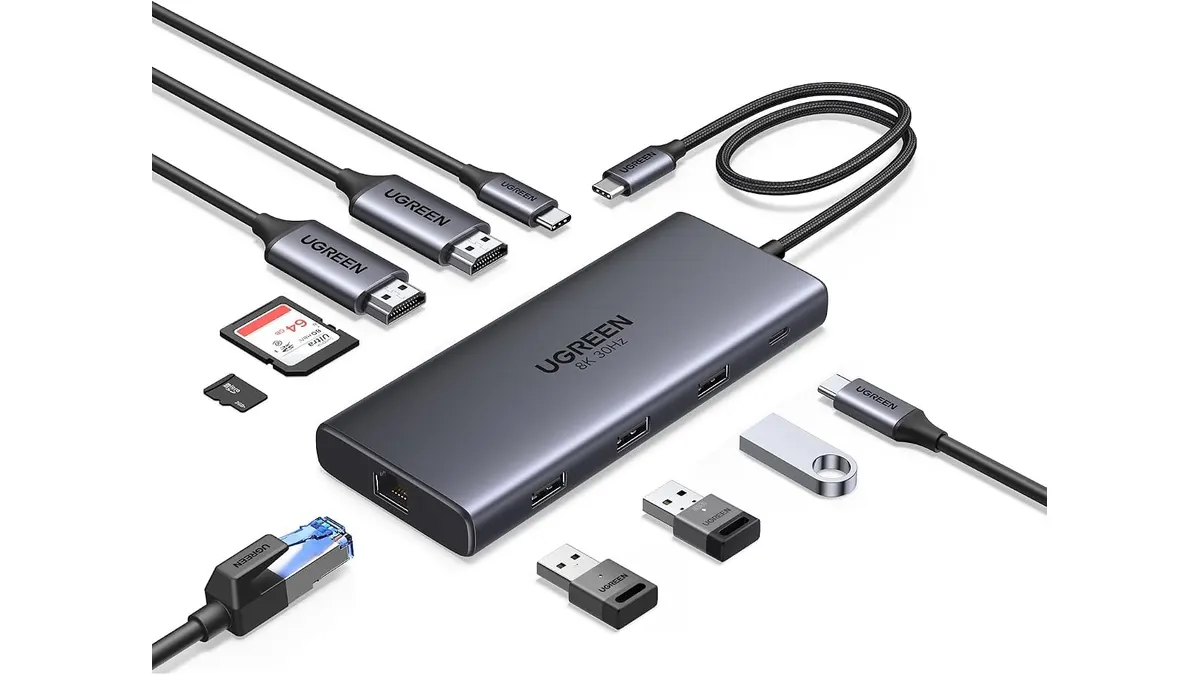
UGREEN 10-in-1 USB C Docking Station Review
Searching for the best usb-c hub for home office setups? Read our UGREEN 10-in-1 USB C Docking Station review for dual 4K video performance and specs.